Teams Worker
اربط عاملك (Worker) بـ Microsoft Teams: يقرأ ويرد في المحادثات والقنوات، ويجد زميلًا في الدليل، ويدير الاجتماعات عبر الإنترنت، ويستيقظ عند مراسلته.
Connect your worker to Microsoft Teams: it reads and replies in conversations and channels, finds a colleague in the directory, manages online meetings, and wakes up when messaged. It acts with its own Microsoft work account, under its own name.
What the Teams connection enables
Once connected, your worker can:
- Read its conversations and channels, including attachments, which it files in its Drive
- Send a message in a conversation or channel, reply in a thread, attach files from its Drive
- React to a message (👍, ❤️…) and edit a message it has sent
- Create a 1:1 or group conversation, and add people to it
- Create a channel in a team
- Find a person by name or address, and know whether they are available
- List, create, move, and cancel online meetings
Two ways to be present on Teams
| Work account (recommended) | Delos bot | |
|---|---|---|
| Identity | The worker, with its Microsoft 365 account | The "Delos" app installed in Teams |
| What it reads | All its conversations and channels | Only messages addressed to it |
| What it writes | Messages, threads, reactions, files, under its own name | Replies and direct messages, in the bot's name |
| Setup | A Microsoft 365 account for the worker | Delos app installed by a Teams admin |
This article describes the work account. The bot remains available for organizations that don't want to create an account for the worker.
Part 1 — Prerequisites
- The worker has a Microsoft 365 work account (see Give a worker a work account). The account must have a Teams license.
- A Delos organization owner has granted the Teams permissions in Settings → Workspace policies.
Part 2 — Grant permissions (administrator)
In Workspace policies, the Teams card is set per resource. Each row switches between Not granted, Read, or Read and write.
| Resource | Read | Read and write |
|---|---|---|
| Chats | Read conversations, find people in the directory, see their presence | Send, react, edit its messages, create conversations, add members |
| Channels | List teams and channels, read messages | Post, reply in a thread, react, edit, create a channel |
| Meetings | List and view meetings | Create, move, cancel |
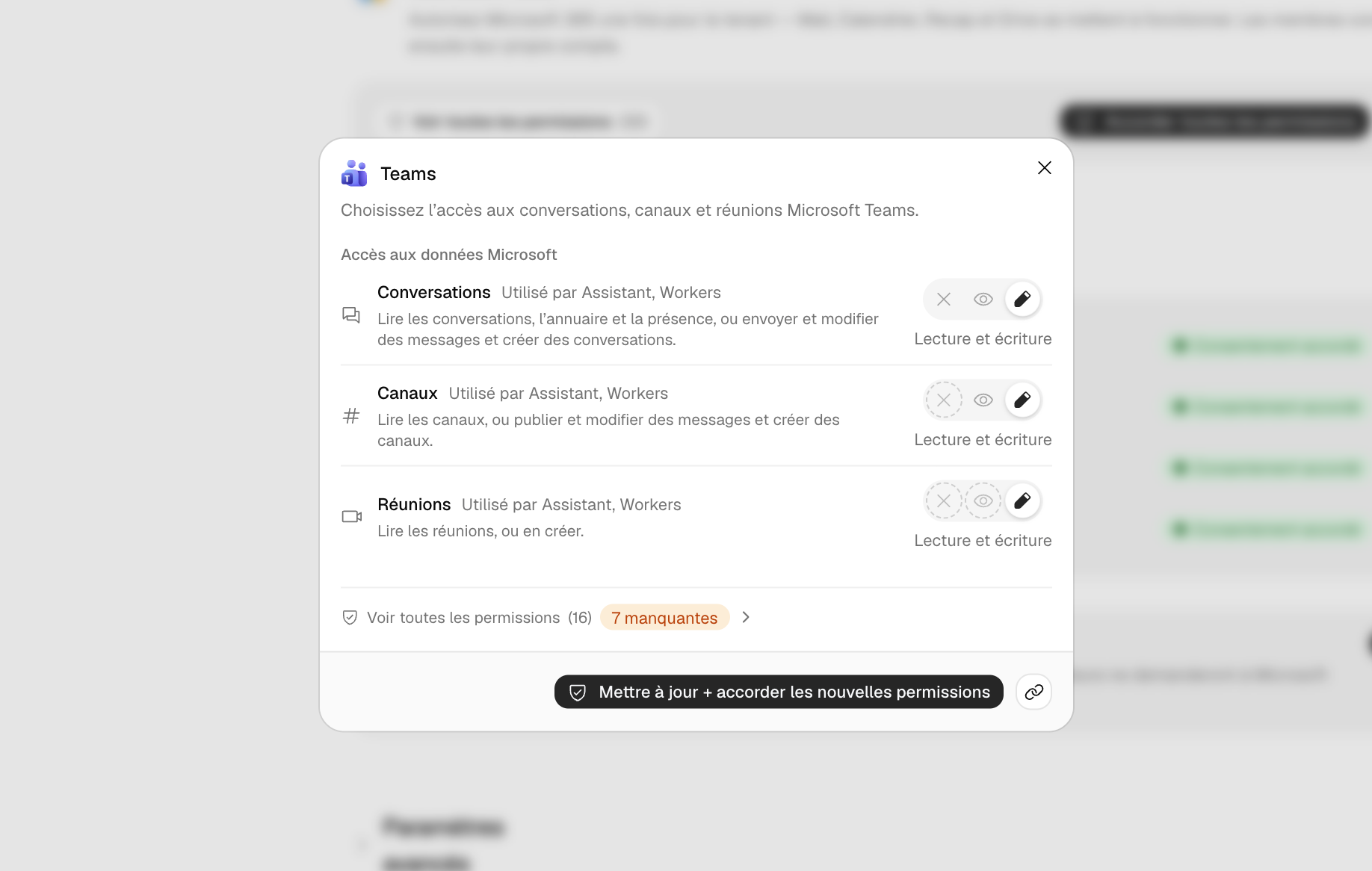
The corresponding Microsoft Graph permissions, for your security team:
- Chats, read:
Chat.Read,User.ReadBasic.All,Presence.Read.All - Chats, write:
ChatMessage.Send,Chat.Create,Chat.ReadWrite,ChatMessage.ReadWrite - Channels, read:
Team.ReadBasic.All,Channel.ReadBasic.All,ChannelMessage.Read.All - Channels, write:
ChannelMessage.Send,Channel.Create,ChannelMessage.ReadWrite - Meetings, read:
OnlineMeetings.Read; write:OnlineMeetings.ReadWrite
Click Grant selected permissions and approve the Microsoft window by checking "Consent on behalf of your organization".
If your tenant enforces deferred approval, the card switches to "Awaiting admin approval" until an Entra ID administrator validates the request.
When Delos adds a Teams feature, the card shows "Update required". Nothing is cut off: connected accounts keep what they have, and only the new feature waits until you click Re-grant.
Part 3 — Connect Teams to the worker
- Open the worker's profile, Work account tab.
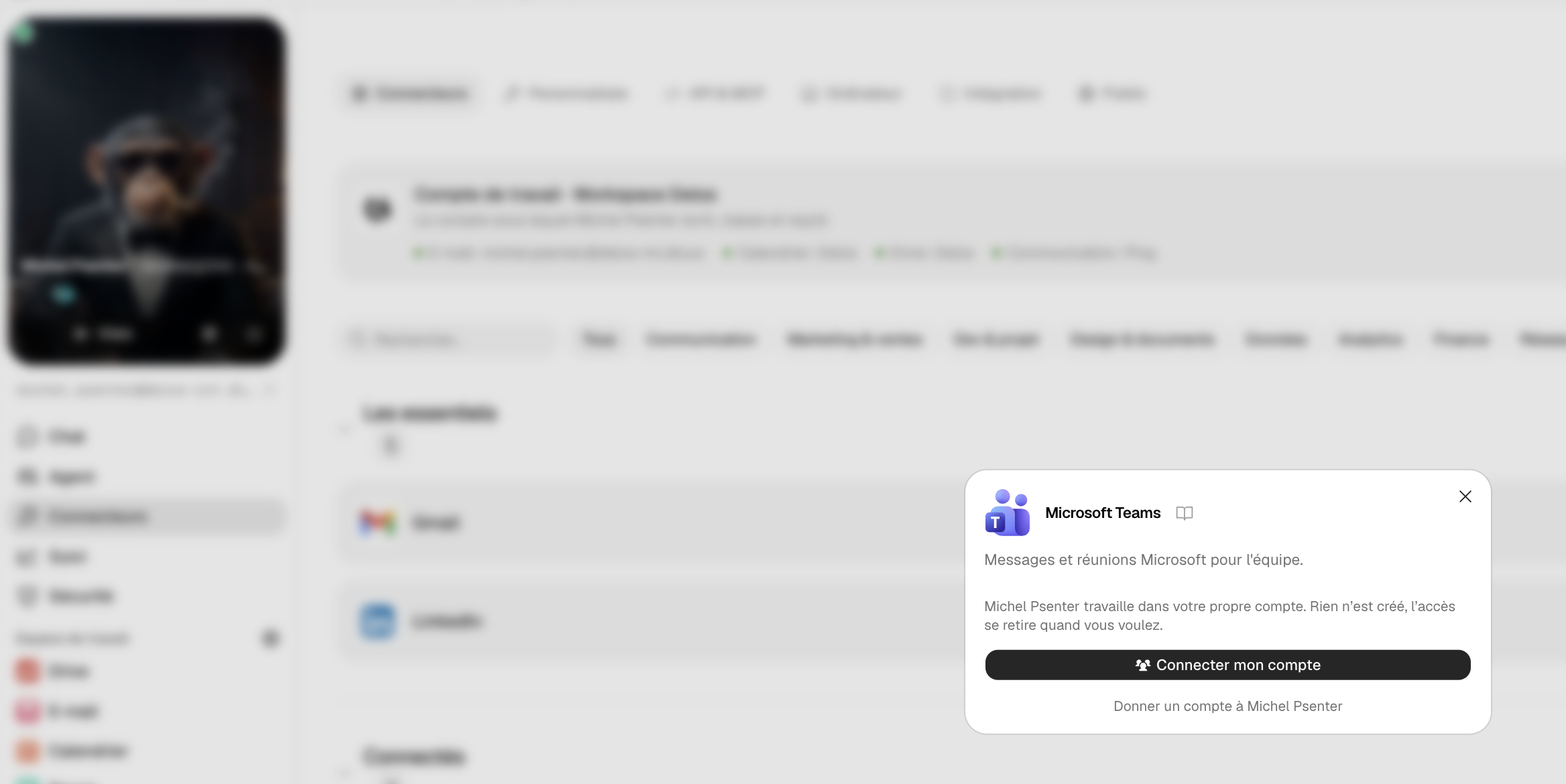
- If the Microsoft 365 account is already connected for Outlook, simply turn on the Teams toggle. Otherwise, click Connect everything and sign in with the worker's account.
- Approve the Microsoft window. It only asks for what the organization has approved.
Part 4 — Choose what wakes the worker
All the account's conversations are synchronized in the Communication → Teams tab of the worker's profile: this is its inbox, where you read everything it receives and sends, attachments included. The resynchronization button brings back recent history if a conversation looks incomplete.
The Trigger panel chooses which of these conversations wake it up:
- None: it never wakes up on Teams, but everything stays synchronized.
- Mentions: only when its account is @-mentioned. The safe setting for an account that sees many channels.
- All: every incoming message. Suited to a worker whose main channel is Teams.
- Per-conversation exceptions: a conversation or channel can have its own rule, different from the default. Setting a rule on a channel subscribes to it.
- Paused: suspends all wake-ups without losing anything.
- My own messages: by default, messages sent from the worker's account never wake it up, preventing it from answering itself. The option only reopens the "notes to self" thread.
The Firewall settings then apply to every send: per-channel rules and allowed recipients.
Verify it works
- From another Teams account, write to the worker 1:1: "Can you confirm you receive me?"
- In the worker's profile, Communication → Teams tab, the message appears, then its reply.
- Send it a file: it appears under the message, and in its Drive, "From Ping" folder.
- Ask it: "React with a thumbs-up to my last message" then "Create a 30-minute meeting with me tomorrow at 10 am".
Frequently asked questions
Does the worker see my own conversations?
No. It reads its own account's conversations. It only sees a conversation if it is a member of it, like any colleague.
Why "Teams message from Unknown"?
Graph doesn't always return the sender's name. Delos looks it up in the conversation's member list; a message from a bot or someone outside the tenant may remain unnamed.
Shared files don't come through.
A file shared in Teams lives in the sender's OneDrive or the channel's SharePoint. To download it, the organization must also have granted OneDrive or SharePoint read in the Policies. Otherwise, the worker sees the file name but not its content.
Can the worker send an actual Teams file?
Files it attaches are sent as Delos sharing links in the message, readable by anyone with the link, including outside your organization.
What happens if I disconnect the account?
Conversation subscriptions are revoked at Microsoft, and the Teams inbox disappears from the worker's profile. The account itself stays in your tenant.