Use a shared mailbox with Delos in Outlook
You can ask the Delos assistant (Outlook add-in) to work with one of your team's shared mailboxes (billing@, support@, clients@…): read, search, draft replies and forward messages from that mailbox.
Prerequisites
| Who | What |
|---|---|
| Microsoft 365 administrator | Creates the shared mailbox and grants the user Full Access. |
| Microsoft 365 administrator | Grants Send As permission, only needed to send from the mailbox. |
| Delos organization | Shared mailboxes must be enabled for the organization: request this from Delos support. |
| User | Reconnects Outlook in Delos once the option is enabled (Settings › Integrations). |
Microsoft permissions may take up to 1 hour to take effect.
1. Add the shared mailbox in Outlook on the web
- Open Settings (gear icon) › Account › Shared with me › + Add.
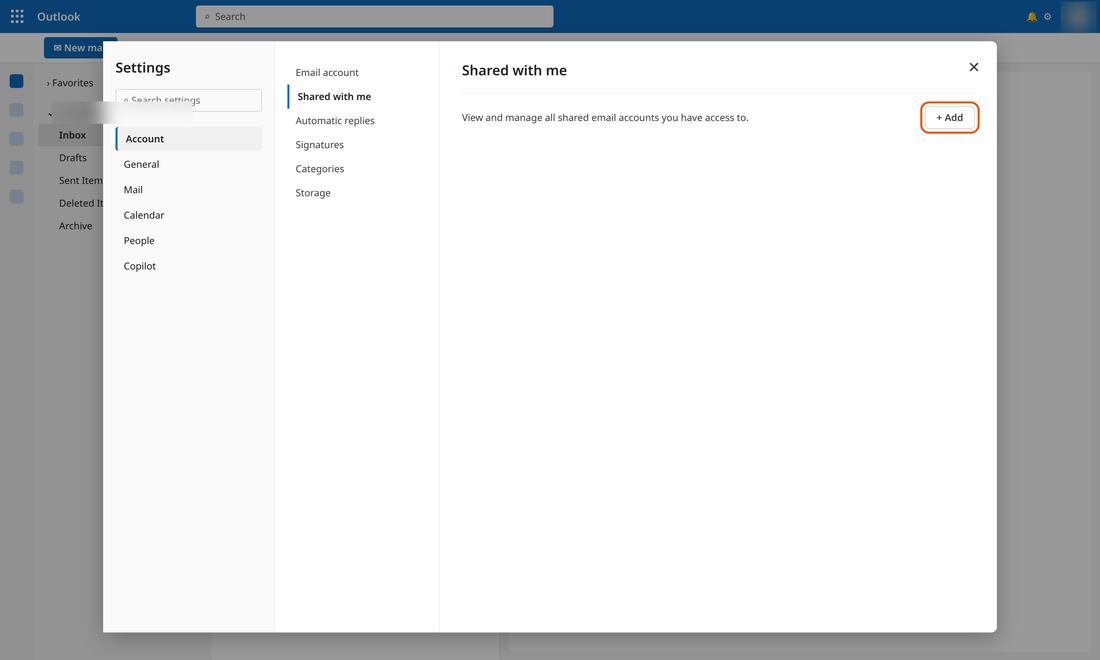
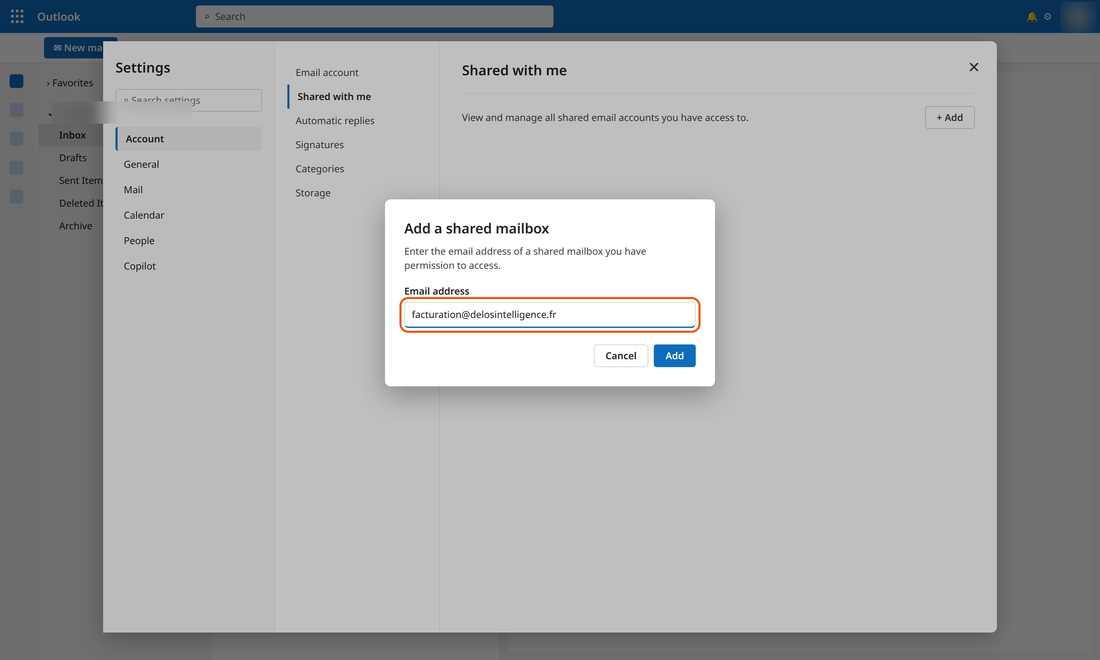
- Enter the shared mailbox address, then click Add.
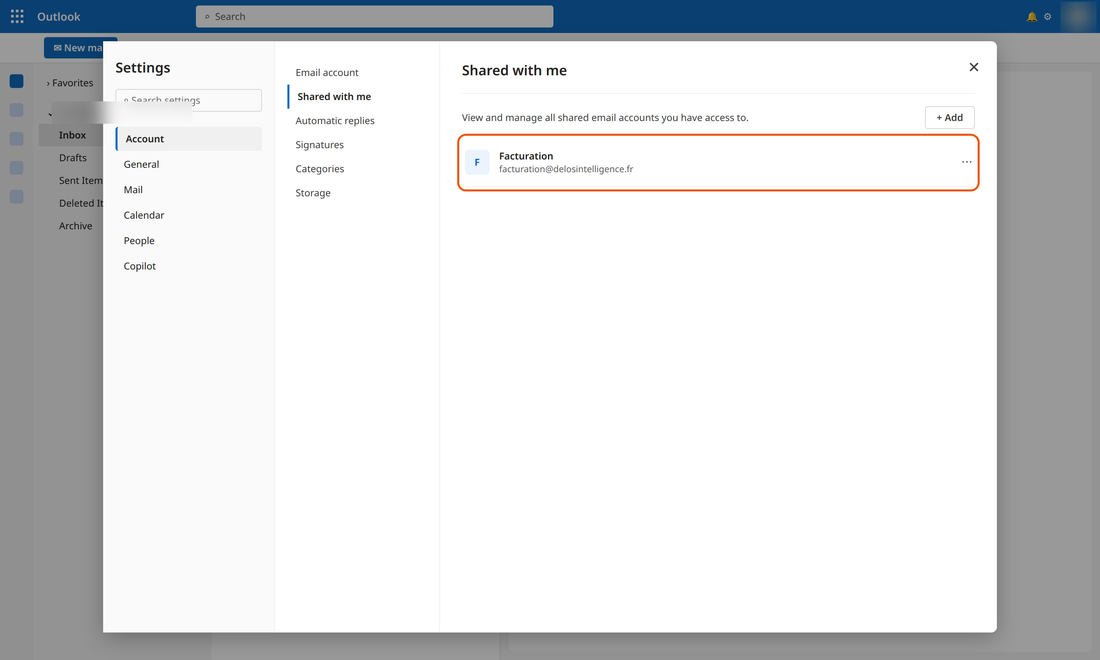
- The mailbox appears in the list.
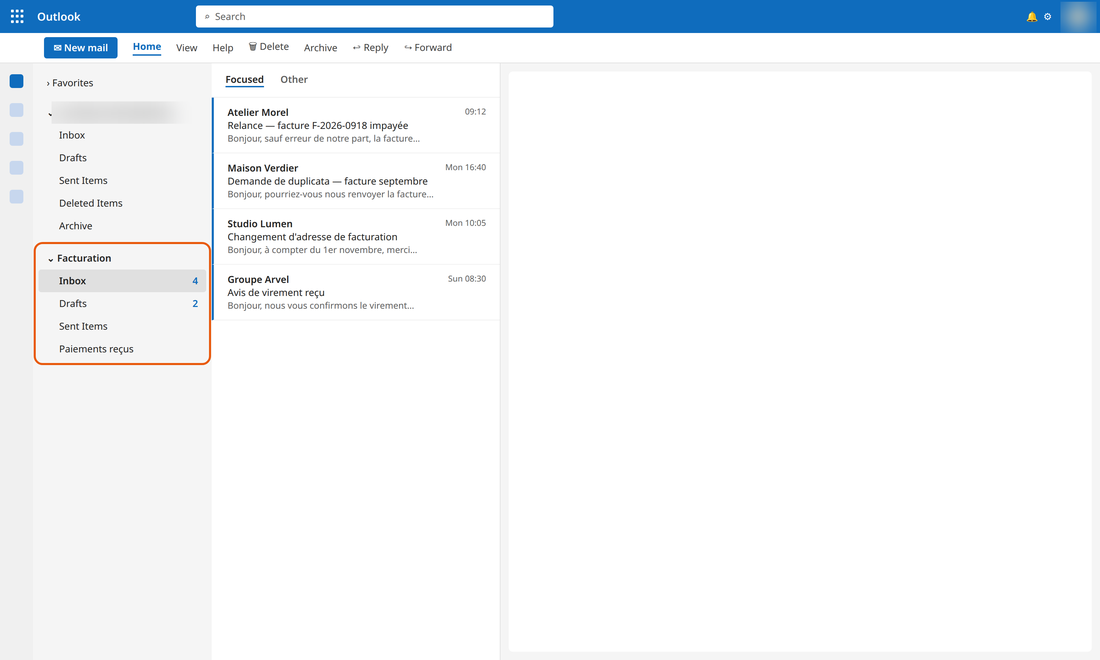
- It appears in your folders, below your own mailbox.
Another way: right-click your name in the folder list › Add shared folder or mailbox.
The exact labels in the add window may vary slightly depending on your version of Outlook.
2. Use the shared mailbox with the Delos assistant
Open Delos from your own mailbox and always provide the exact address of the shared mailbox. The assistant cannot guess it: without an address, it works with your personal mailbox.
Example requests:
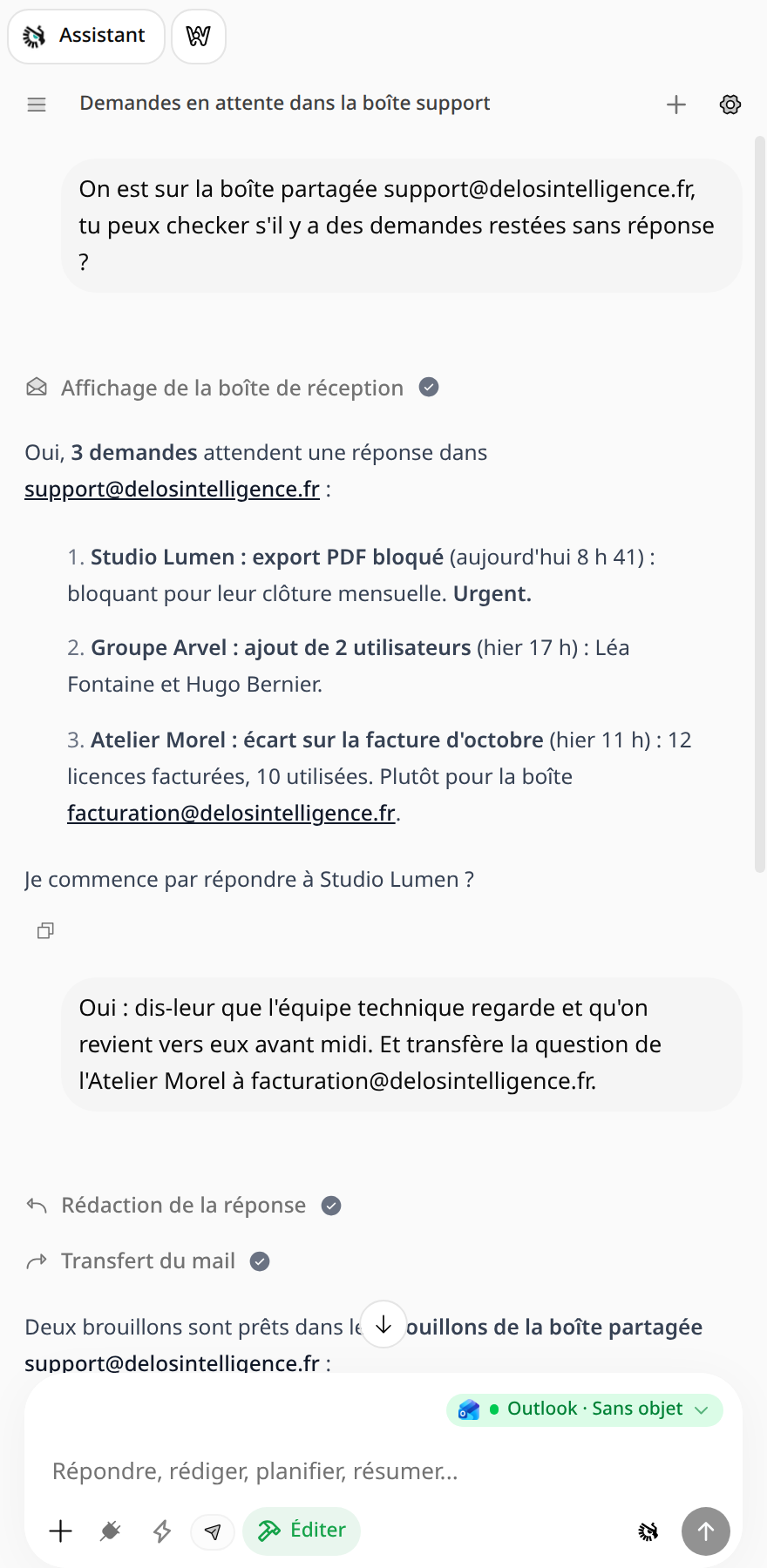
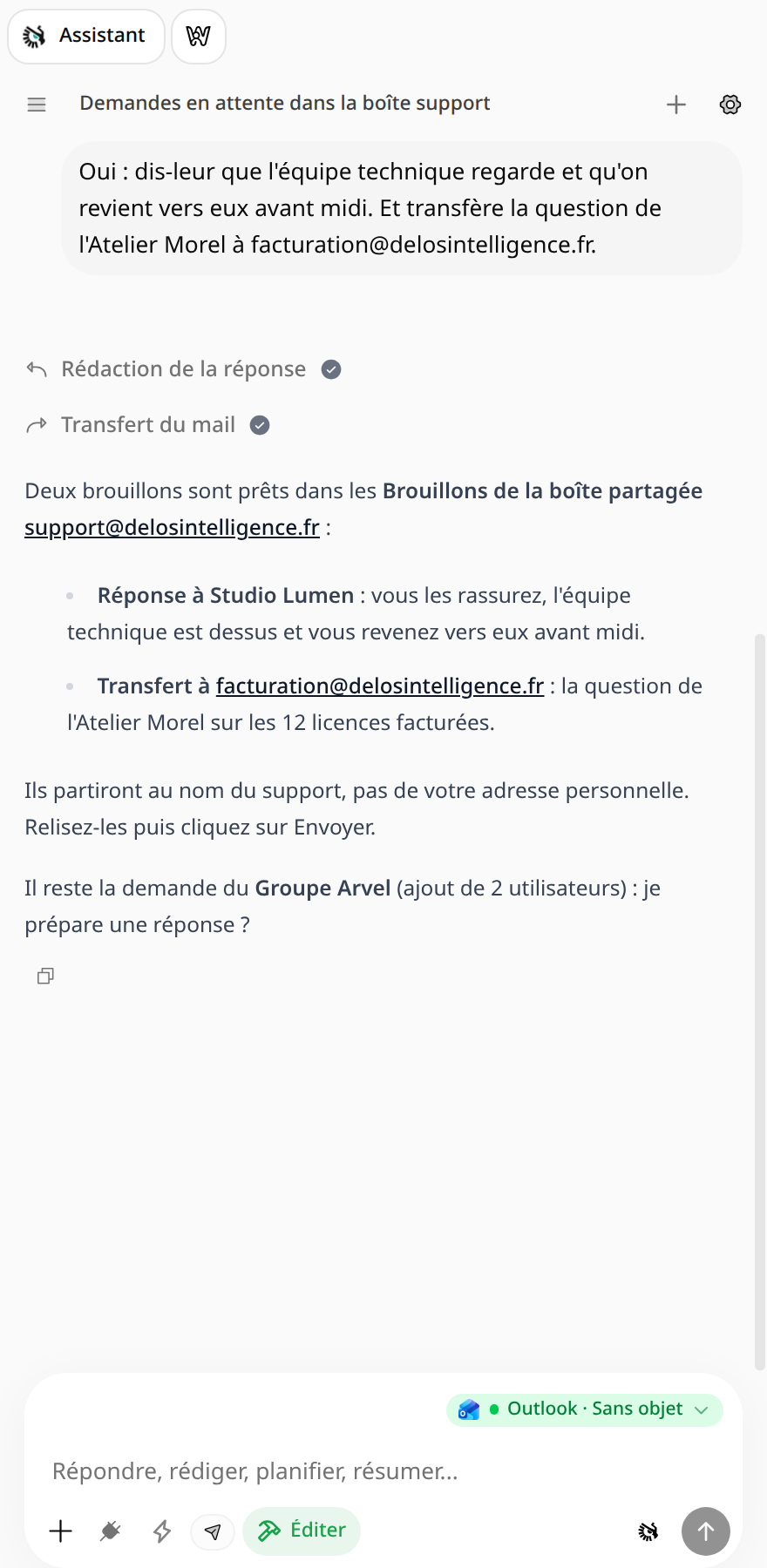
- “We're working in the shared mailbox support@entreprise.fr. Can you check whether any requests have gone unanswered?”
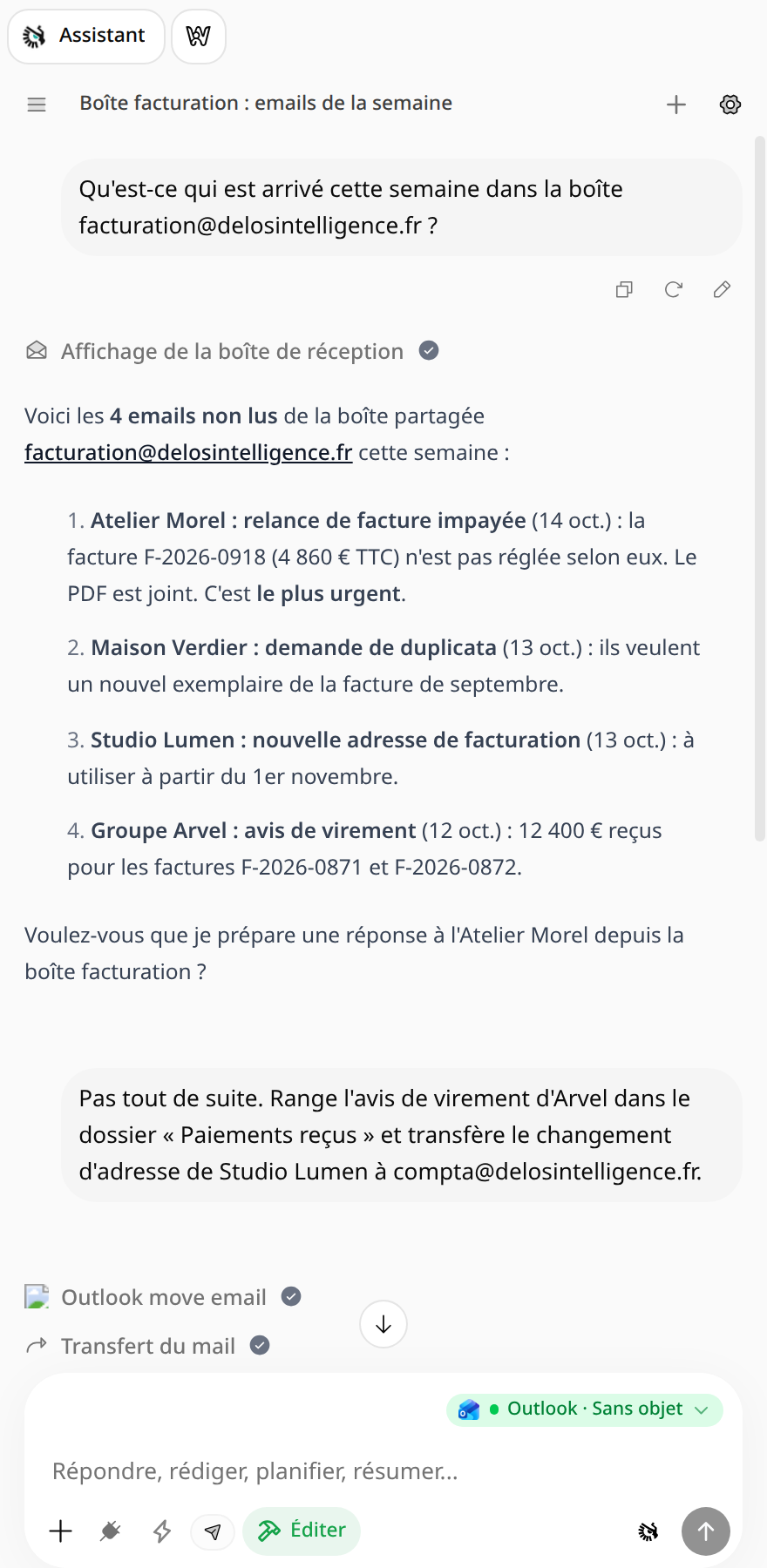
- “What arrived this week in facturation@entreprise.fr?”
- “Find the exchanges with Maison Verdier about the renewal in clients@entreprise.fr.”
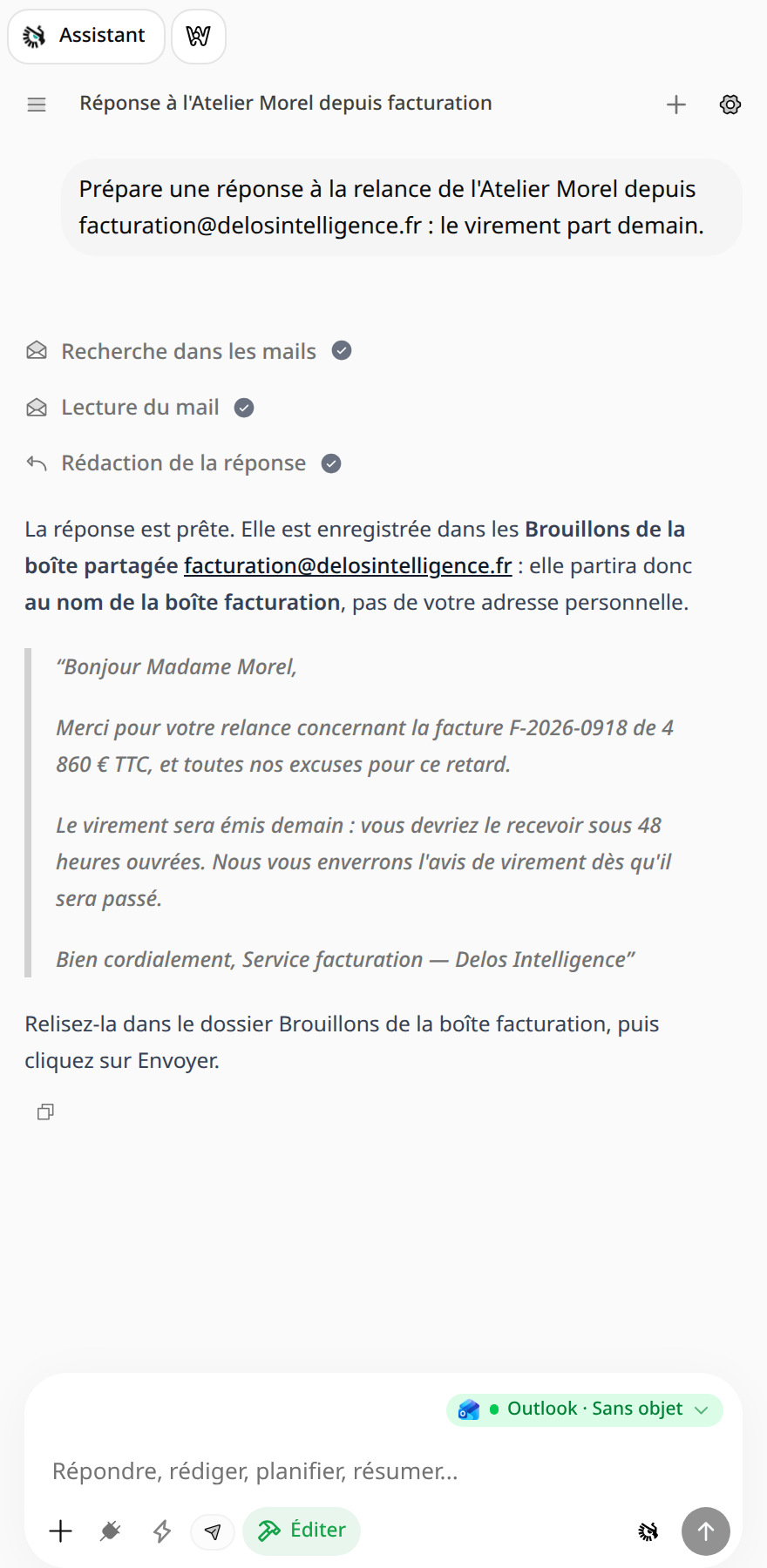
- “Draft a reply to Atelier Morel's follow-up from facturation@entreprise.fr.”
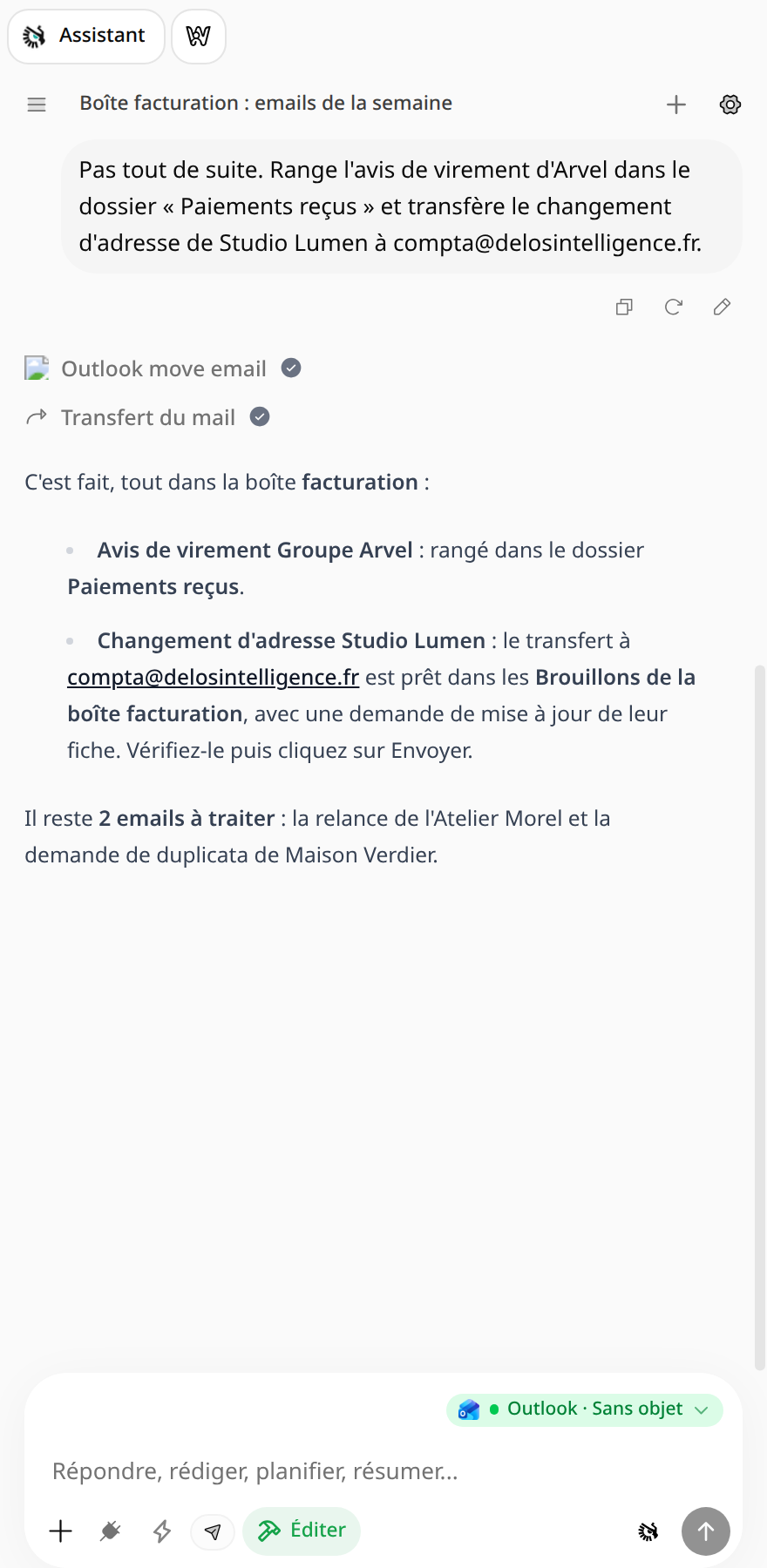
- “Forward this email to compta@entreprise.fr from the billing mailbox.”
Triage a support mailbox
Triage and organize a billing mailbox
Draft a reply
Find a conversation
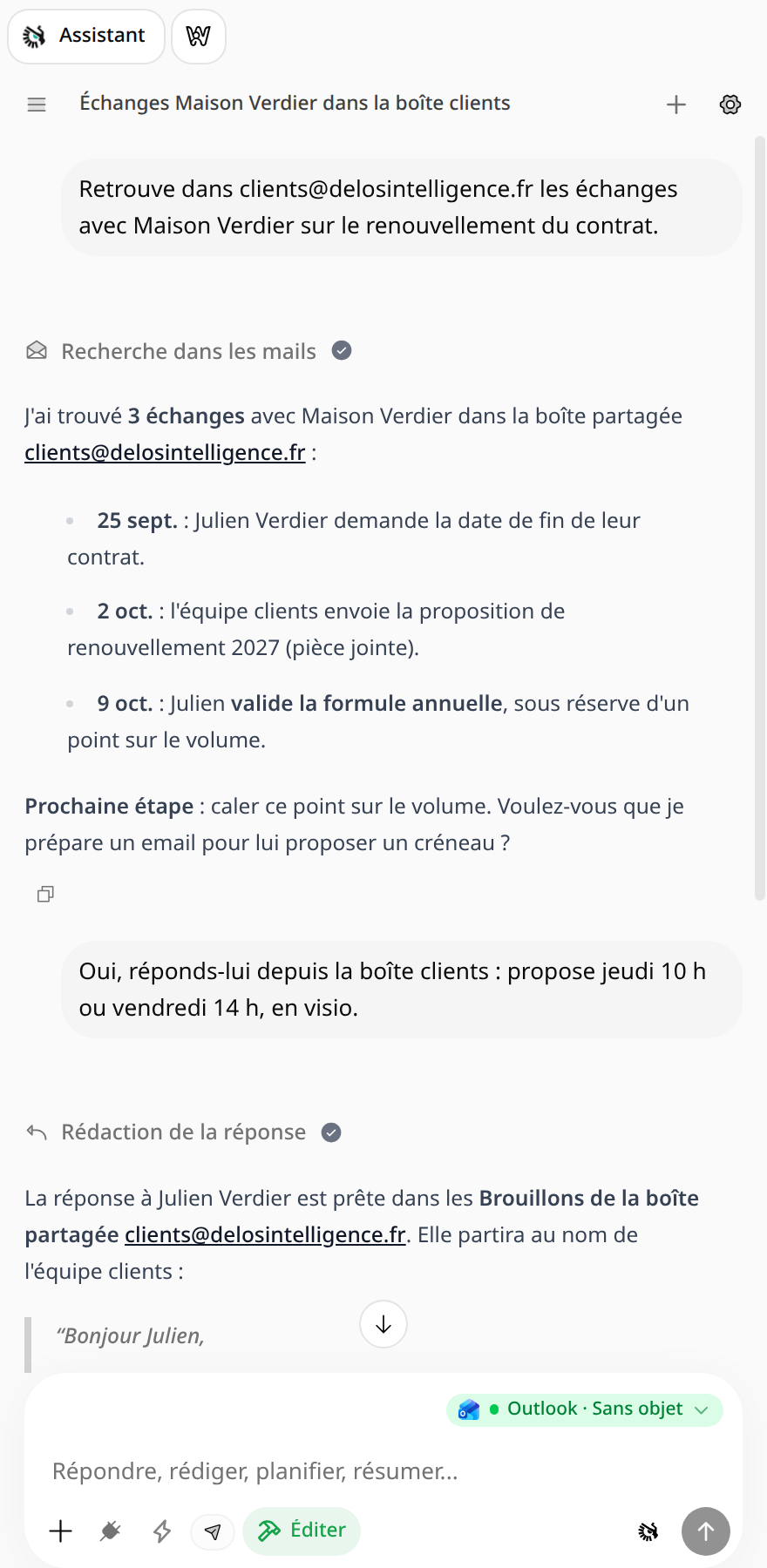
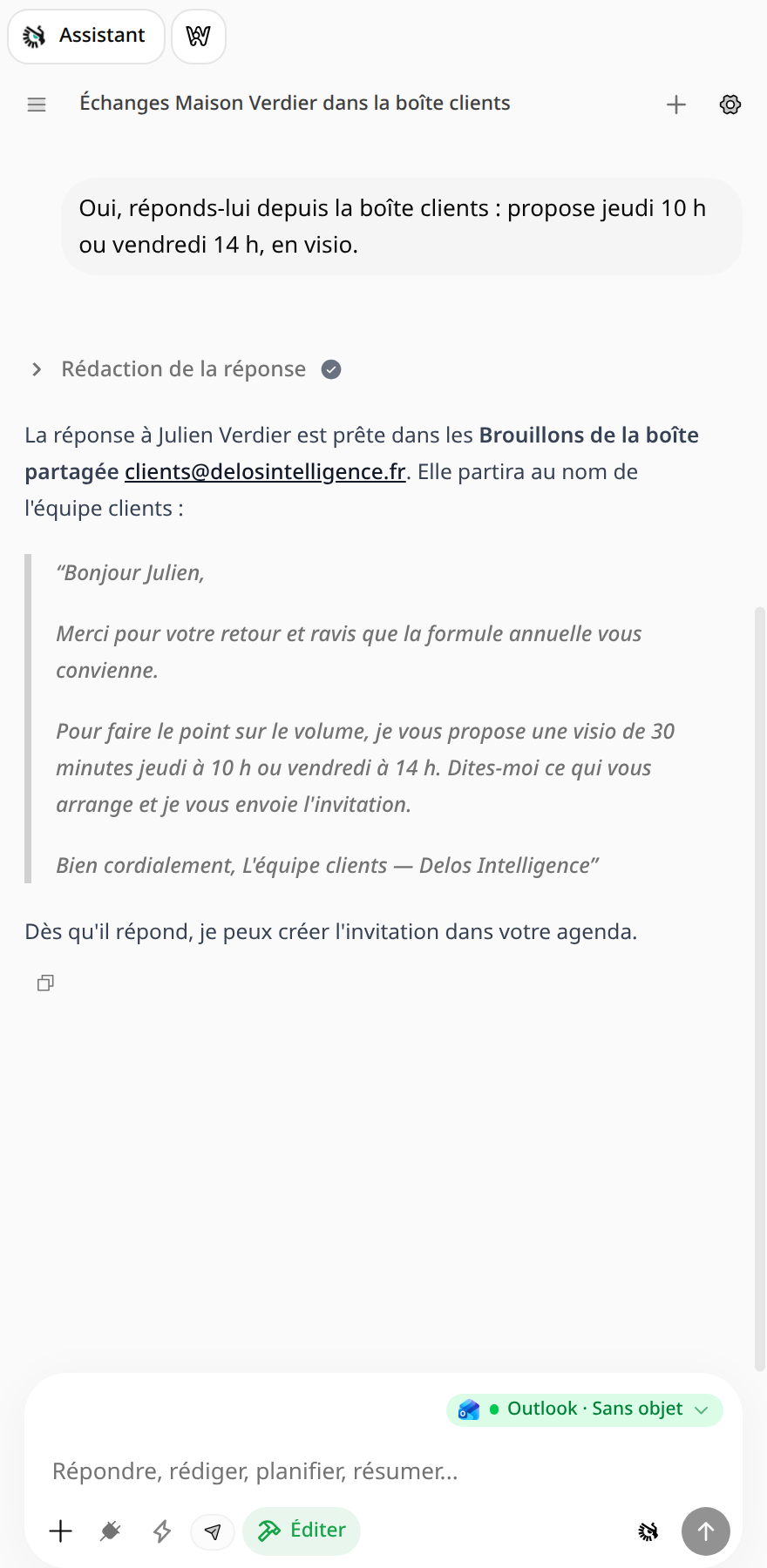
These screenshots show fictional data.
What you need to know
- Replies and forwards are created as drafts in the shared mailbox's Drafts folder. They are sent in the mailbox's name, not from your personal address.
- By default, the assistant does not send anything: you review the draft and then click Send. To let it send, enable the paper airplane below the input area (requires Send As permission).
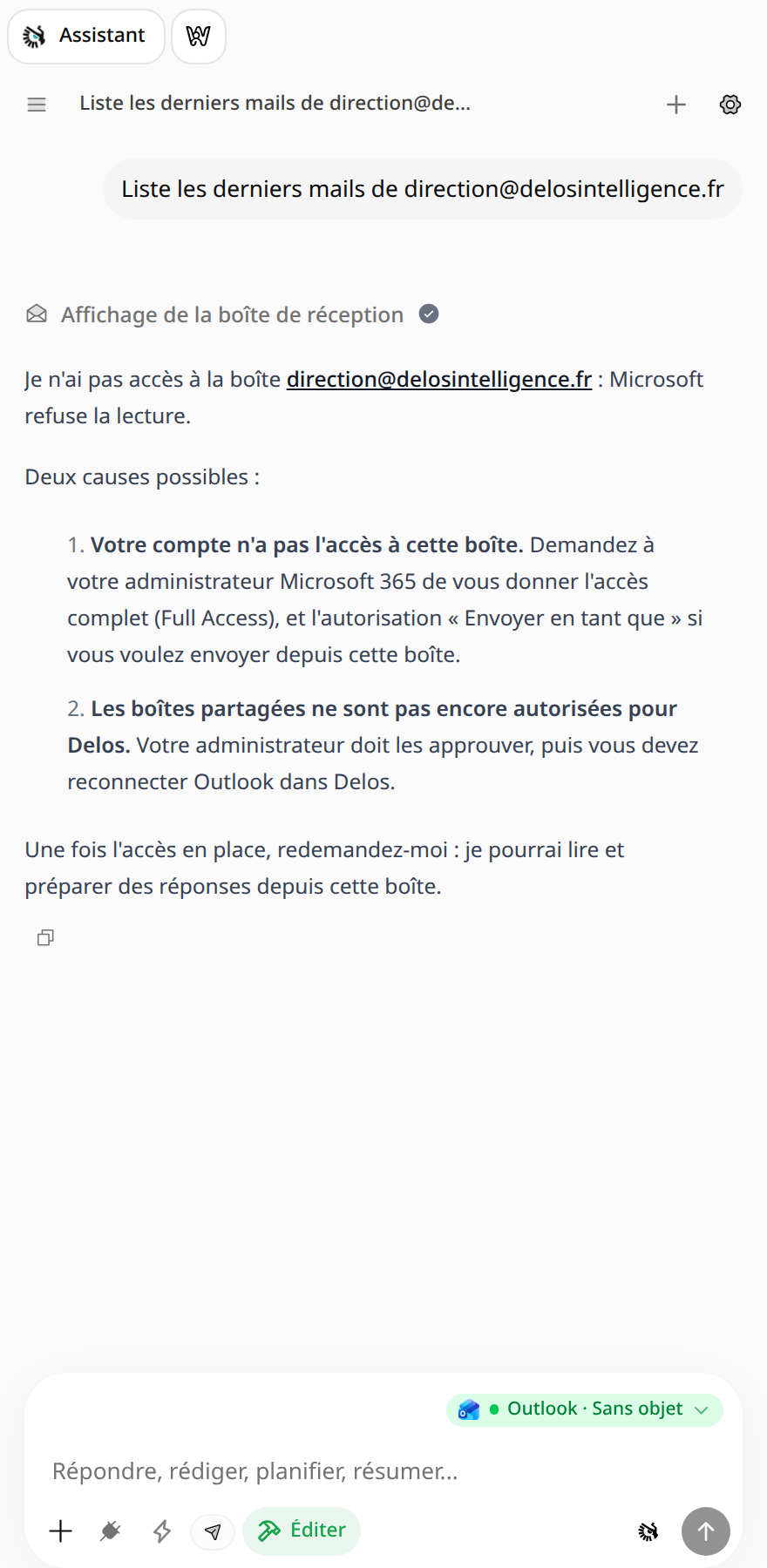
Troubleshooting
| Message | Cause | Solution |
|---|---|---|
| Outlook: “You don't have permission to add this account” | The user does not have Full Access to this mailbox. Being an administrator is not enough. | The Microsoft 365 admin grants Full Access, then allow up to 1 hour. |
| Assistant: “I can't access the mailbox…” | Full Access is missing, or shared mailboxes have not been enabled / Outlook has not been reconnected in Delos. | Check the prerequisites, then reconnect Outlook in Delos. |
| Assistant: “the address does not exist” | Typo in the address. | Copy the exact address from Outlook. |
| Sending denied | Send As permission is missing. | The Microsoft 365 admin grants this permission. |