Give a worker a work account
By default, a worker works on the Delos Workspace. To make it act under your company's identity, with an Outlook or Gmail mailbox, a calendar, files, and Teams or Google Chat, give it a Microsoft 365 or Google Workspace work account.
This article describes the procedure end to end.
Prerequisites
- Be the worker's manager in Delos.
- Be able to create an account in your Microsoft 365 or Google Workspace admin console, or know someone who can.
- For Microsoft: a Delos organization owner has granted the permissions in Settings → Workspace policies. Without this, the connection stops on a message inviting you to request it.
Step 1 — Choose the work account
- Open the worker's profile, Work account tab.
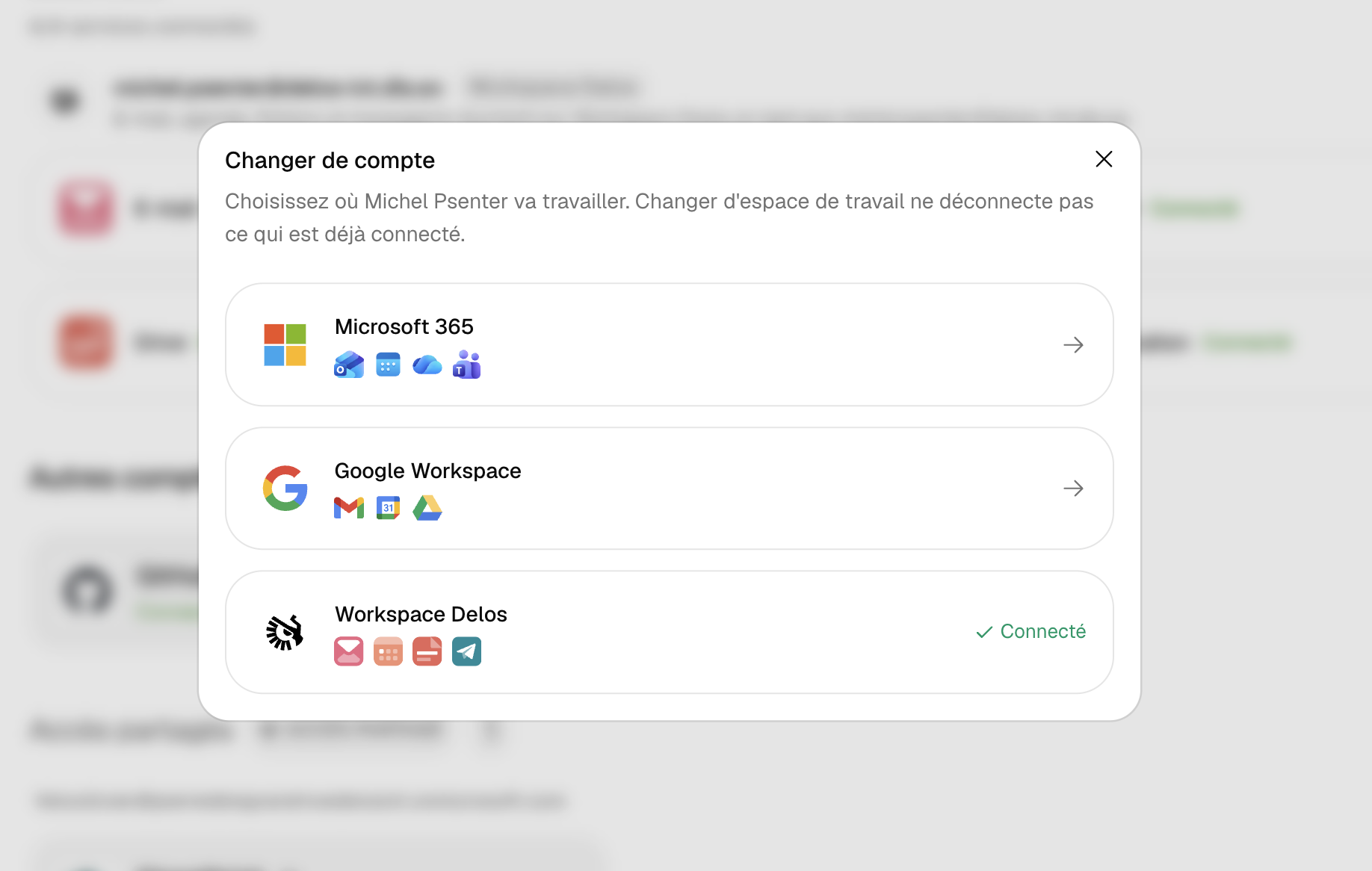
- In the Essentials section, choose where the worker will work: Microsoft 365, Google Workspace, or Delos.
- Click Choose for the selected provider. The page shows a three-step journey you can leave and resume.
Step 2 — Create the worker's account at the provider
To be done in your admin console, exactly like for a new hire.
- Create a user in the worker's name, with an address on your domain.
- Enter as backup address the Delos address shown on the page: the worker receives verification codes there, avoiding the need for a phone.
- Assign the necessary licenses (Exchange, Teams, OneDrive on the Microsoft side; Gmail, Drive on the Google side).
You can also connect your own account. Delos will flag it as "This work account is yours": the worker will send under your name. Keep this for a trial only.
Step 3 — Connect the account to the worker
- Click Connect everything, or connect services one by one.
- A provider window opens. Sign in with the account created for the worker, not with your own. Delos refuses an address that is already another colleague's work account.
- Authorize the requested permissions. They correspond to what your organization has approved, no more, no less.
- Back in Delos, the page becomes the account summary: connected services, their toggles, and the address the worker acts under.
Microsoft case: administrator approval
If Microsoft replies that the application requires administrator approval, an owner must grant the permissions in Settings → Workspace policies, then you reconnect the account. The page indicates which services are ready and which are still awaiting approval.
Google case: restricted third-party apps
Google grants nothing at the organization level. If your administrator has restricted third-party app access, they must mark Delos as approved in the Google admin console, then the connection goes through.
Step 4 — Set what the worker uses
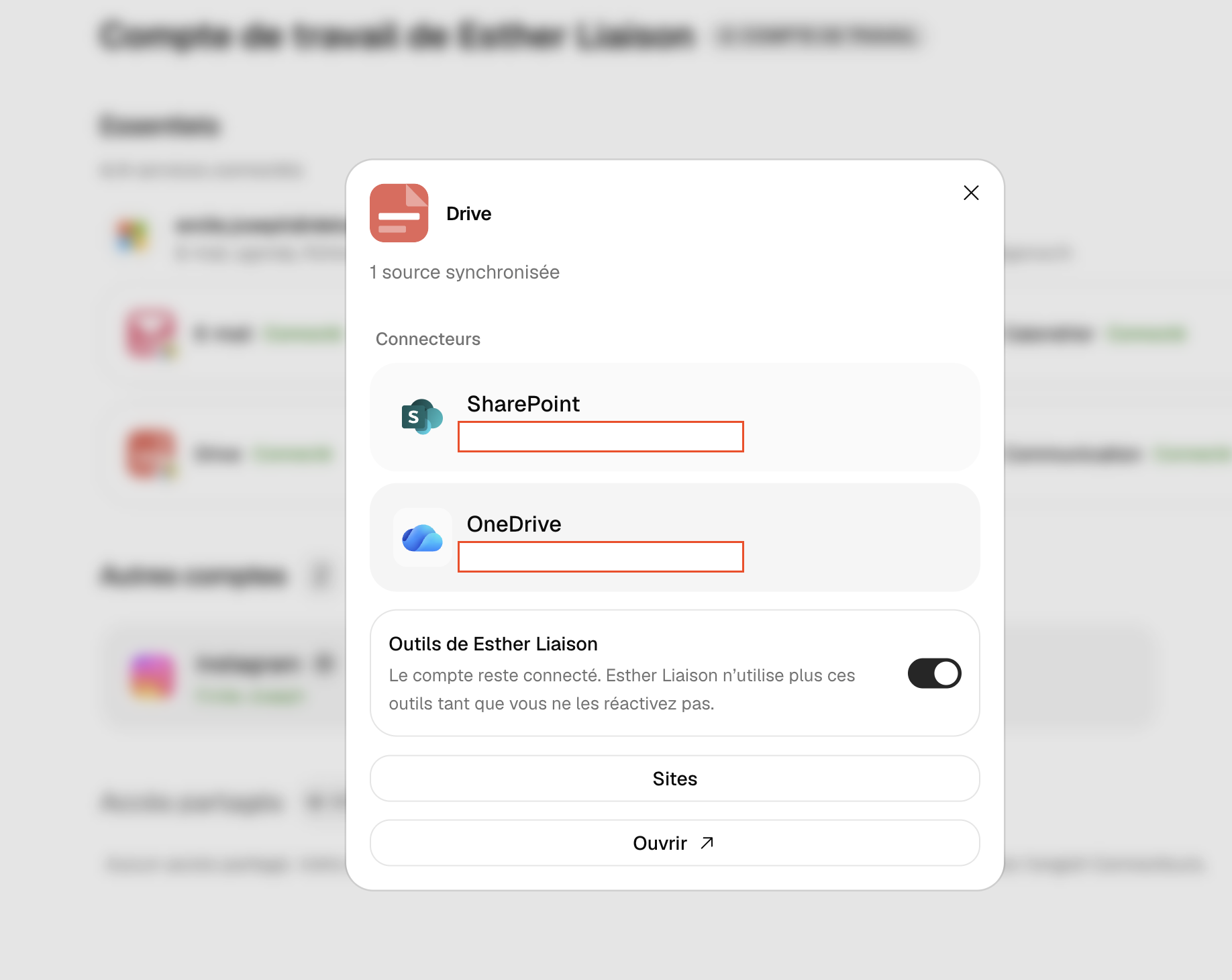
- Per-service toggles: turning off a service keeps the account connected but removes the corresponding tools from the worker. The calendar follows mail.
- SharePoint sites / Google Drive: check the sites, drives, or folders to place in the worker's Drive, and choose per source the sync mode (resynchronized copy, offline copy, live read).
- Teams: in the Communication tab, the Trigger panel chooses which conversations wake the worker. See the Teams Worker article.
Verify it works
Ask the worker: "Send me a test email from your mailbox". The message must arrive from the worker's address, not yours. Its name appears in the Communication tab of its profile.
Change or disconnect
- Change workspace: choose another provider in Essentials. Delos asks what happens to the old account: keep it as a shared account, or disconnect it with its mailbox and email.
- Disconnect: account menu, Disconnect. The worker stops sending, filing, and receiving via this account. Nothing is revoked at the provider: close or reassign the account in your console.
Frequently asked questions
Is one account needed per worker? Yes. An address can only be the work account of a single worker. Two workers that must read the same mailbox use a shared account (see Work account and shared accounts).
Does the worker keep its Delos address? Yes. It stays active and serves as the recovery address.
Must the account stay signed in a browser? No. Delos keeps a long-lived authorization it renews itself. It is only lost if an administrator revokes it or if the account password changes with session revocation.