Connecteur API custom
Conecte cualquier API externa a su Worker con secretos protegidos.
Connect a custom API to a Worker
Prerequisites
- Be a manager of the Worker in Delos (org admins and owners can also do this).
- Have the details of the API you want to connect: its base URL, its documentation (a link or a file), and its credentials. Depending on the service, that means an API key, or the client ID and client secret of an OAuth 2 app.
Part 1: Prepare the API information
1. Find the base URL and the documentation
- The base URL is the root all endpoints share (e.g.
https://api.stripe.com/v1). - The documentation is what the Worker reads to learn the endpoints, parameters and response formats. You can provide a link, or upload a file (
.txt,.md,.json,.yaml,.csv,.html,.xml, up to 200,000 characters). The better the documentation, the better the Worker will use the API.
2. Get the credentials
Three cases, matching the three authentication modes in Delos:
- API key: create a key in the service's developer settings and copy it.
- OAuth 2 (client credentials): create an app on the service and note its client ID, client secret, and token URL.
- OAuth 2 (account connection): create an app on the service, note the same information plus the authorization URL, and register the redirect URL that Delos shows you in the form (it ends in
/api/connectors/oauth/callback).
Part 2: Create the connector in Delos
3. Open the Worker's connectors
- In Delos, open the Worker you want to connect
- Go to the Connectors tab
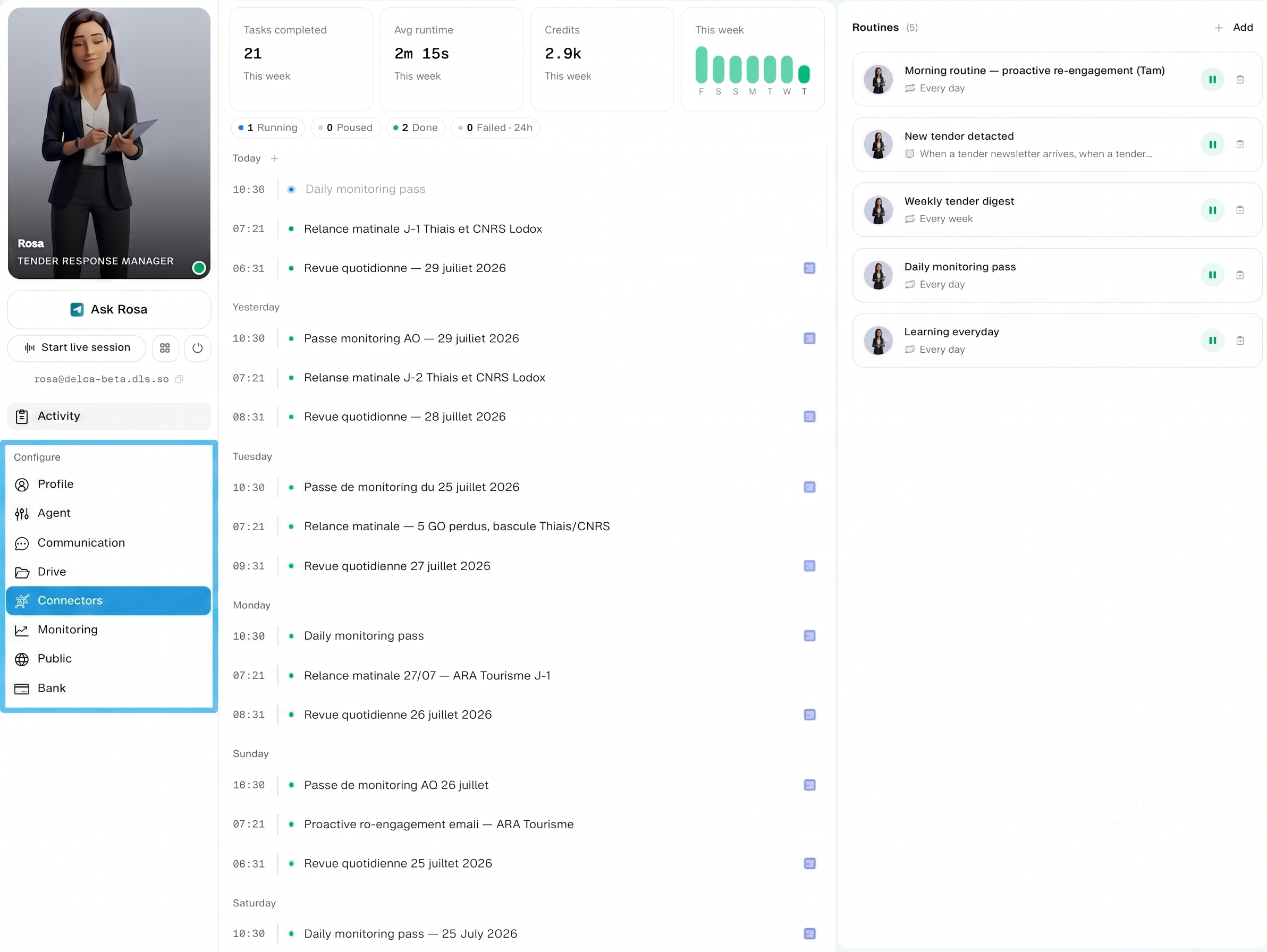 - The **API connectors** card is at the top left of the page
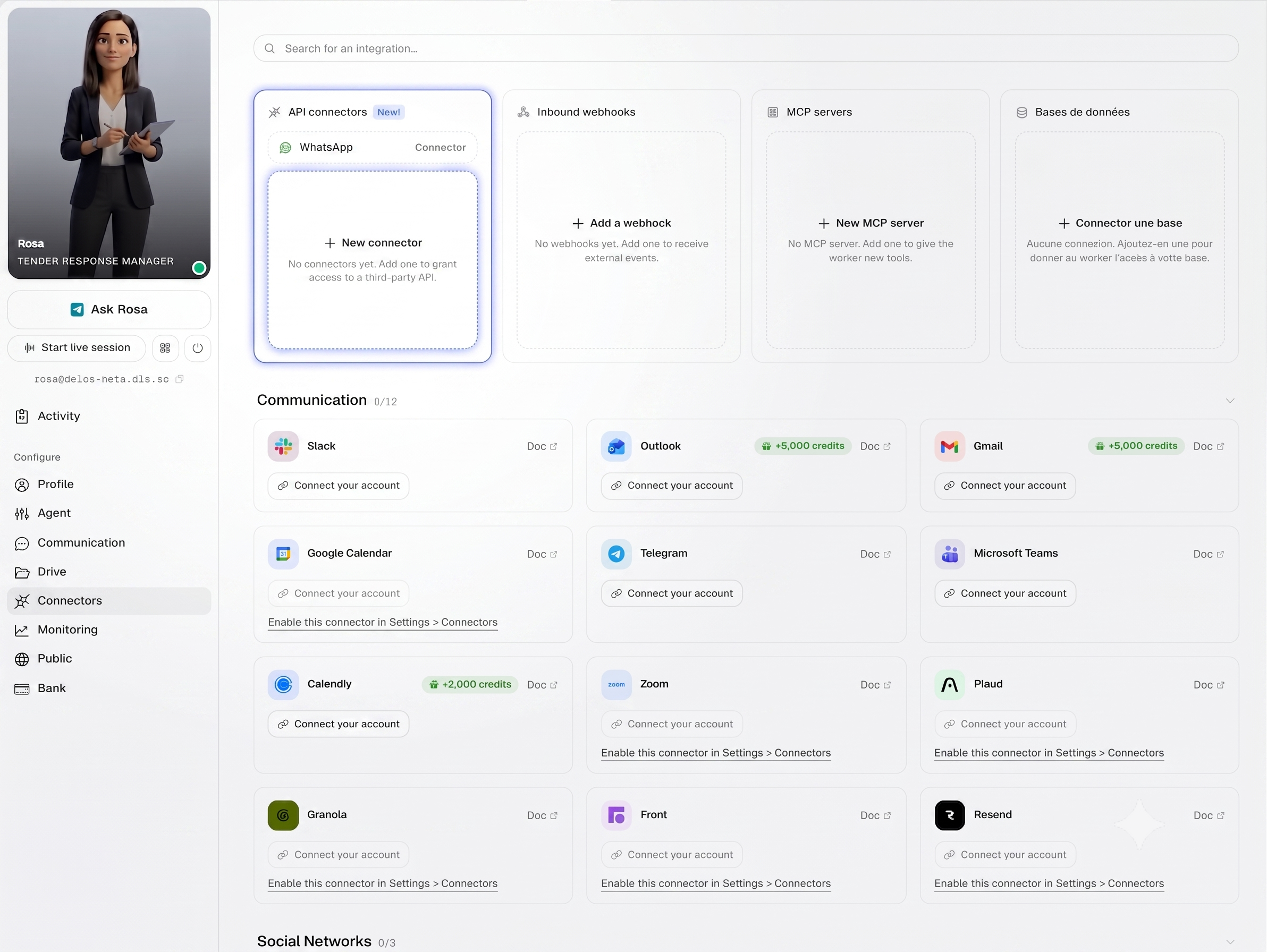 - Click **New connector**
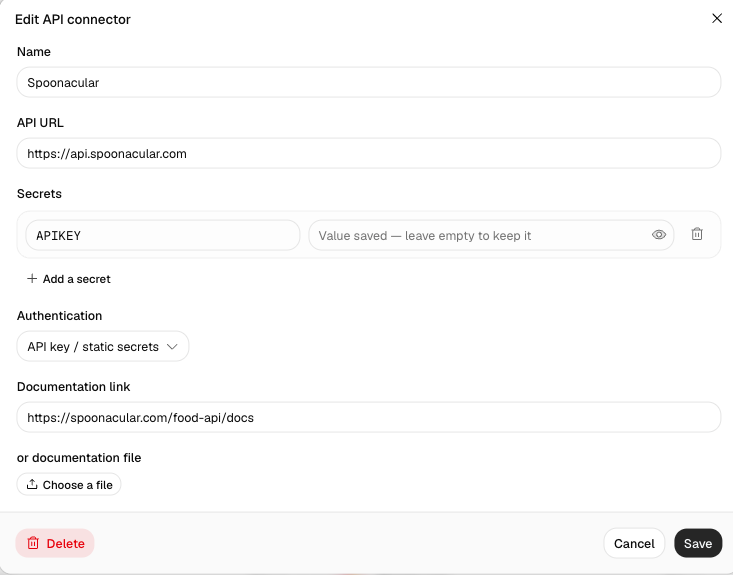
4. Fill in the form
- Name: the service's name (e.g. Stripe)
- API URL: the base URL (
https://is added automatically if you omit it) - Secrets: one row per credential. The name becomes a placeholder the Worker will reference (e.g.
API_KEY), the value is entered in a masked field. Click Add a secret for more rows. - Authentication: pick API key / static secrets, OAuth 2 (client credentials), or OAuth 2 (account connection). The OAuth modes reveal extra fields: token URL, client ID, client secret, plus scopes and audience if needed.
- Documentation link or documentation file: at least one of the two is required. An uploaded file appears in an editable text area, so you can trim it.
- Click Save
5. OAuth 2 (account connection) only: connect the account
- The connector row now shows a red Account not connected badge
 - Click **Connect account**: the provider's consent screen opens in a new tab
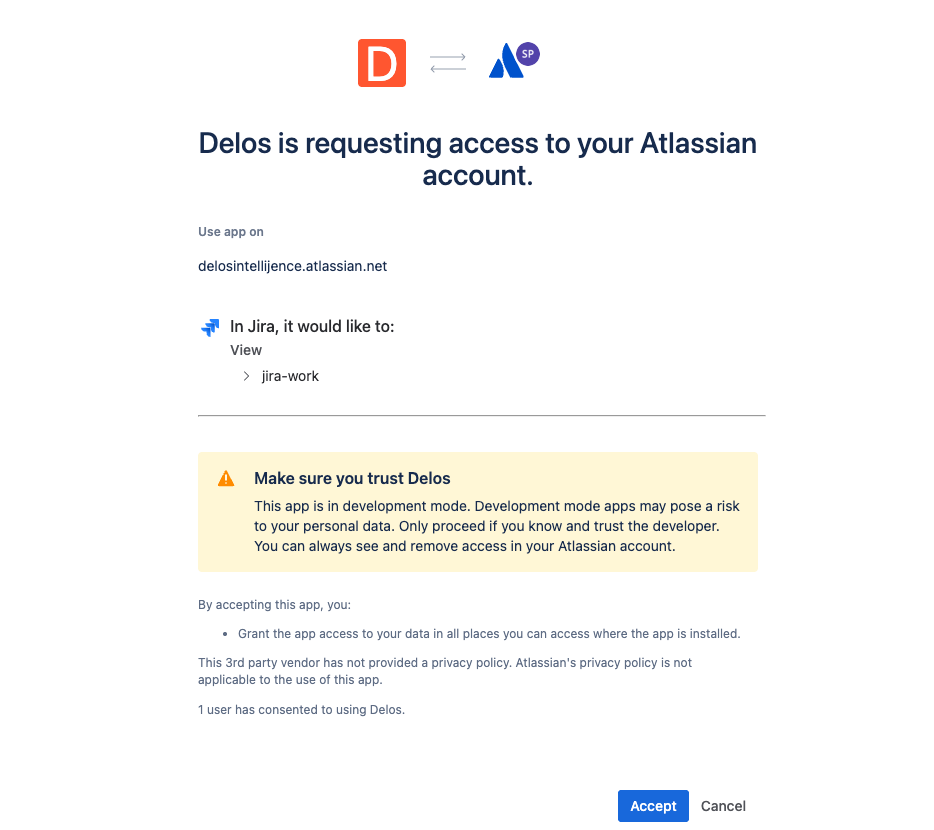 - Approve, the tab confirms and closes itself, and the badge turns green: **Account connected**

The Worker can now call this API on its own: it reads the documentation, builds the requests, and Delos injects the secrets server side.
Verify it works
- The connector appears as a row in the API connectors card, with the number of secrets and a documentation icon
- Ask the Worker to make a simple call (e.g. "list my Stripe customers") and check the result
Note: There is no automatic validation of the key or the OAuth configuration when you save. A wrong key is only detected when the Worker makes its first call, as an authentication error returned by the API.
Manage the connector
- Edit: click the row to reopen the form. Saved secret values are never displayed; the field shows Value saved, leave empty to keep it. Type a new value only to replace it.
- Update a key: open the connector, paste the new value in the secret's field, save. Changes apply immediately, even in a conversation already in progress.
- Reconnect an account: for account-connection OAuth, a Reconnect button sits on the row. An orange badge with an expiry time means the provider granted no refresh token: the connection will lapse at that time.
 - **Delete**: open the connector and click **Delete** (a confirmation is asked). The Worker loses access immediately.
Built-in safeguards
- Secret values are replaced server side. The Worker only sees placeholders like
$API_KEY, and any value appearing in a response is redacted. - Requests are restricted to the connector's own domain; the Worker cannot send the credentials anywhere else.
Also available: an org admin can create the same kind of connector at the organization level (Settings > Team > Connectors) and share it with several Workers. It then appears in the Worker's integration catalog, where a manager enables it in one click.